Manage network
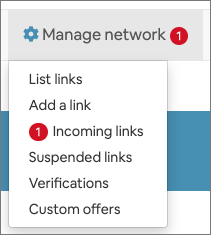
Manage network menu
-
items marked with a numbered red badge indicate items that need immediate attention.
-
some items may only appear when required items in the Manage club menu are completed.
-
some items may not appear on the menu for non-ClubGuests members.
Reciprocal listing
Select List links from the Manage network menu.
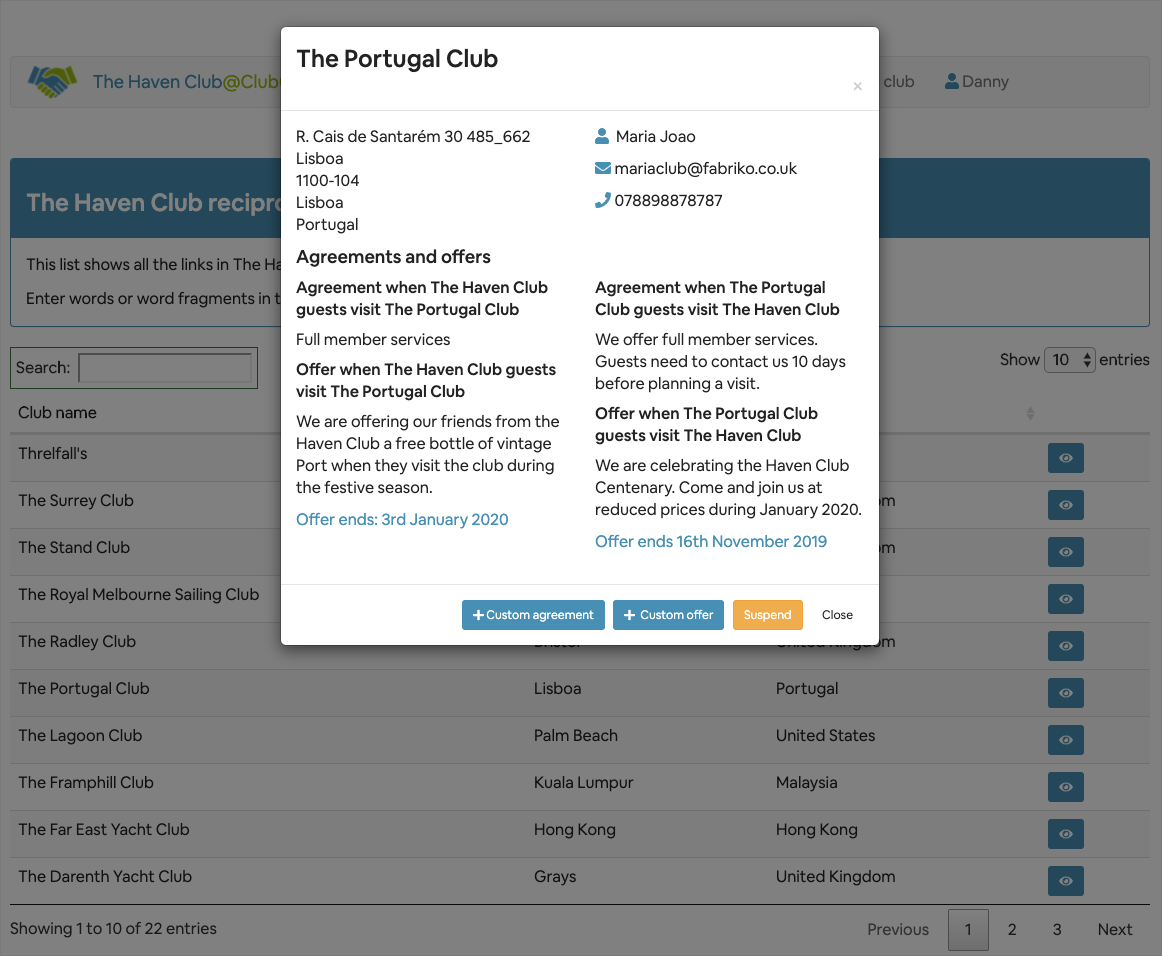
The list shows all the clubs that are currently in your network.
The list excludes any incoming links that you have not accepted.
Click the  to see the club detail.
The modal window:
-
shows a summary of the club contact and admin details
-
a summary of agreements and offers between your club and the linked club
-
a set of buttons that allow you to cary out actions on the linked club
-
some buttons are only available to ClubGuests members.
Add a link
This is only possible if you have completed the required fields for your letter of introduction.
Incoming links
This menu item may show a count of outstanding incoming links.
An incoming link happens when another ClubGuests member adds your club to their links network.
Click the to see the club detail.
The modal window:
-
shows a summary of the club contact and admin details
-
a summary of agreements and offers between your club and the linked club
-
a set of buttons that allow you to cary out actions on the linked club
-
some buttons are only available to ClubGuests members.
Verifications
This menu item may show a count of outstanding verification requests from your members.
Select menu item to manage verifications.
Custom offers
This menu item may show a count of expired custom offers
Select menu item to manage all your custom offers
Suspended links
This displays a list of clubs that you have suspended, or clubs that have suspended you.
Select the menu item to manage suspensions.